Photo to SVG: convert a photo into editable vector shapes
This photo to SVG tool turns a JPG, PNG or WebP photo into a downloadable file. Preview the trace, adjust its color layers, remove a flat background or make a black cut file.
JPG, PNG or WebP · up to 20 MB and 20 megapixels
Path and curve detail
Higher cleanup drops more small shapes. Smoothing and corner threshold change how curves are fitted.Examples
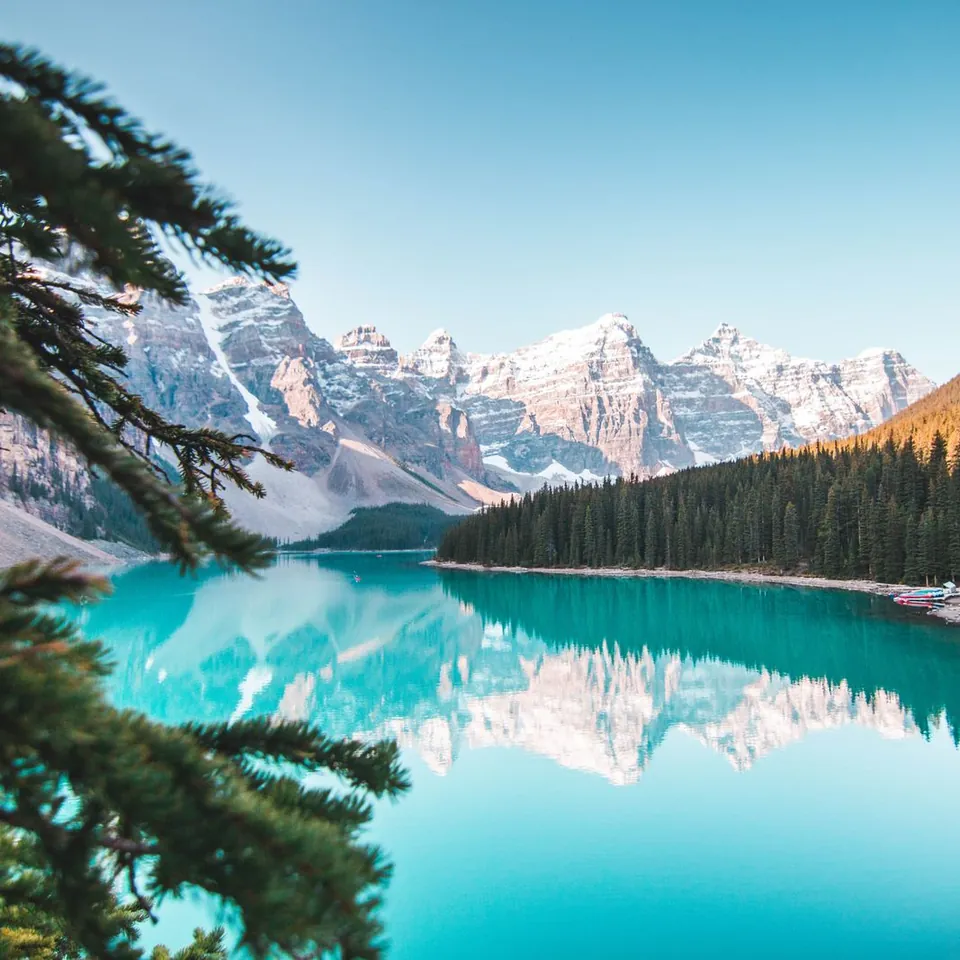
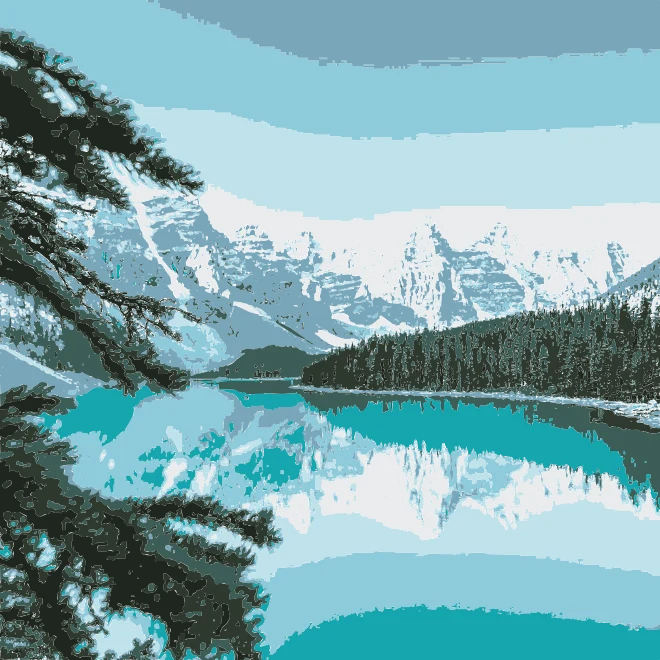
Convert a photo to SVG in 3 steps
Choose one JPG, PNG or WebP image up to 20 MB and 20 megapixels, or try the sample photo. The image opens on your device.
Choose a color count, set detail cleanup and curve smoothing, then optionally blur the image or remove a white or dominant edge background. Select Fill or Stroke and an output scale.
Switch between Original and SVG preview, zoom in to inspect the paths, then choose Download SVG. The file is saved directly by your browser.
What a photo to SVG converter does
An SVG is a vector file made from paths and colors. This converter traces the pixels in a JPG, PNG or WebP into editable shapes. The work runs in a browser worker; the photo is not uploaded to PhotoToGIF, and we do not host the result.
Toggle the original and SVG preview, zoom in, and check the path count and file size before downloading. At 100% scale the SVG viewBox matches the photo’s pixel dimensions. Large photos use a smaller working copy scaled back to the source dimensions.
Tracing makes colored regions from pixels. It does not identify objects or redraw a scene as clean, hand-drawn vector art. Detailed photos can produce thousands of paths.
Set colors, detail and background removal
Choose 2 to 32 colors for a color trace. Fewer colors simplify regions; more colors preserve photo detail but can add paths. The preview reports the path count and file size, with a warning when an SVG exceeds 1 MB.
Detail cleanup omits short paths that often come from specks. Smoothing and corner threshold control curve fitting; a light blur can soften texture before tracing. High cleanup can also remove small features, so inspect the preview before saving.
Remove white clears near-white pixels. Remove dominant edge color clears shades near the most common edge color. It works best on a flat background, but may also clear similar colors inside the subject. Neither option is a precise selection mask.
Make a single-color cut file
Choose 1 color for a black silhouette SVG with one visible fill color. Darker pixels become black shapes and lighter regions are removed. For cleaner cuts, start with a high-contrast logo or drawing on a plain background; remove the background and raise detail cleanup to drop small islands.
For Cricut and other cutting machines, import the SVG into the machine’s editor and check its cut preview. Detailed photos can create loose pieces or narrow gaps that are hard to weed. A one-color trace is not a hand-prepared stencil.
Which images make the cleanest SVG?
Logos, line art, simple illustrations and high-contrast images usually trace more cleanly than detailed photos. Hair, foliage, shadows and texture contain many nearby shades, which can become stacked regions and a heavy SVG.
Fill mode makes closed color shapes. Stroke mode outlines regions and may add strokes on adjacent layer boundaries. Lower the color count for fewer boundaries. Scale changes the SVG dimensions; compatible editors can resize the vector later.
Vector paths can be enlarged without pixel edges, but tracing does not invent detail or guarantee a compact file. If a result is too busy, use a simpler source, remove a distinct background or omit more small paths.
Local processing, file limits and image rights
Your browser decodes the photo, traces it in a worker and creates the SVG for download. PhotoToGIF does not receive, store or host either file. No account or credits are required. Input is limited to 20 MB and 20 megapixels.
Use an image you own or have permission to edit and publish. The converter does not grant commercial rights to a photo, logo, character or other artwork.
More free GIF and photo tools
Photo to SVG questions
Is this photo to SVG converter free?
Yes. It is free in your browser, with no sign-in, credits or watermark. Add one supported photo, adjust the trace, then download an SVG.
Is my photo uploaded when I convert it to SVG?
No. Your browser decodes the photo and traces it in a Web Worker. The SVG is created and downloaded on your device; PhotoToGIF does not host either file.
Which image formats can I convert to SVG?
JPG, PNG and WebP images are supported. Animated GIF, SVG, PDF and other file types are not accepted as input.
What is the maximum photo size?
The limit is 20 MB per file and 20 megapixels. The browser traces a working image up to 1,800 pixels on its longest side, then scales the paths to the source dimensions in the SVG viewBox.
Can I use the SVG commercially?
Yes, if you own the source image or have permission for commercial use. The converter changes the file format but does not grant rights to a photo, logo or artwork.
Does this work with Cricut Design Space and other cutting machines?
Usually, if the software accepts SVG files. Import the downloaded path file into Cricut Design Space or your machine’s editor and check its layers and cut preview first; machine software and supported SVG features can vary.
How do I get a clean single-color cut file?
Choose 1 color for a black silhouette, start with a high-contrast logo or drawing, remove a flat white or dominant edge background, and increase detail cleanup. Inspect small gaps and loose shapes before cutting.
Why can a photo make a heavy SVG?
Photos contain gradients, texture and many nearby colors. The tracer approximates those pixels with paths, so a detailed photo can produce many shapes and a large SVG. Reduce colors, omit specks or use a simpler image to shrink it.
Will the result look like clean hand-drawn vector art?
No. The converter traces pixel regions and cannot redraw a photo as a polished illustration. Logos, line art and high-contrast images usually need less cleanup than textured photographs.