Turn a photo into pixel art PNG in your browser
Drop in a JPG, PNG, WebP, or GIF, choose a pixel size and palette, preview the result, then download a sharp PNG or a short pixel GIF.
JPG, PNG, WebP or GIF (first frame), up to 20 MB. Nothing is uploaded.
Your pixel art appears here. The photo stays on this device.
Examples
Made with this converter from a sample photo. The settings are under each image.
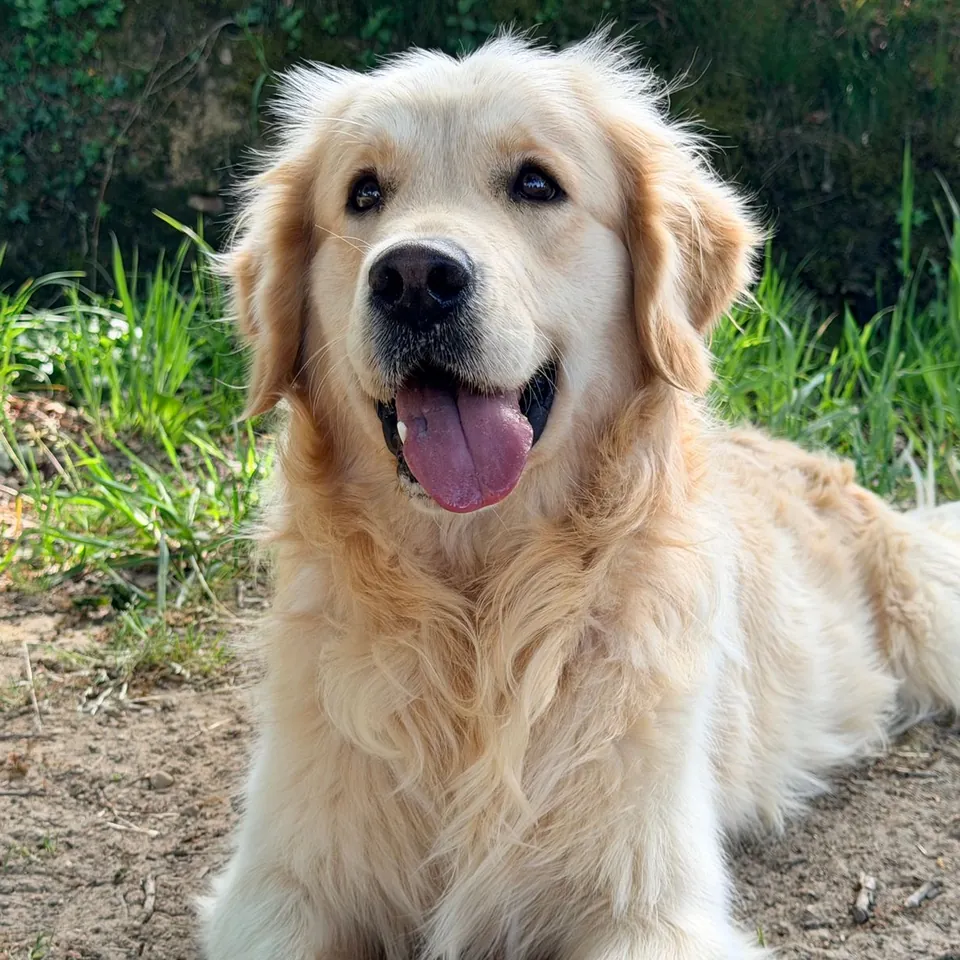
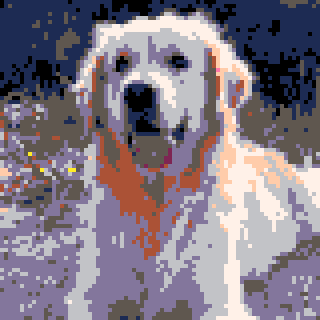
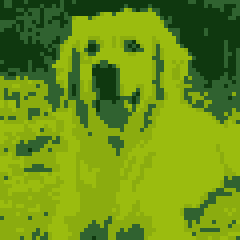
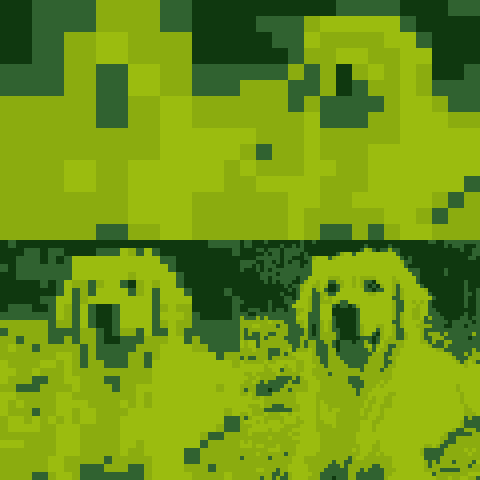
Make pixel art in 3 steps
Add 1 JPG, PNG, WebP, or GIF image that is 20 MB or smaller. An animated GIF contributes its first frame.
Set the block size from 2 to 64 px, choose a palette and a color cap, then switch grayscale or dithering on if you want either effect.
Check the live preview and choose Download PNG. The output stays sharp when you enlarge it because each block is copied without smoothing.
What photo to pixel art conversion does
Pixel art reduces a photo to a grid of larger color blocks. This converter samples each block, turns it into one solid pixel color, and enlarges the grid with nearest-neighbor drawing so the block edges remain crisp. The browser processes the image on this device. It does not send the source photo to PhotoToGIF for conversion.
A larger block removes more detail and makes a chunkier image. A smaller block keeps more of the original shapes. The preview reports the block grid and number of visible colors, so you can compare settings before saving. PNG preserves the finished pixels without the color and timing limits of an animated GIF.
Choose a block size, palette, and output size
The block slider runs from 2 to 64 source pixels. At 2 px, small edges and texture survive. At 16 px or more, faces, scenery, and product details become much more abstract. The source is reduced to a working long edge of at most 2,048 px before pixelation; this keeps large camera photos manageable while preserving their aspect ratio.
Original colors keeps the sampled colors unless you set a maximum. You can cap it at 2, 4, 8, 16, 32, or 64 colors. Built-in palettes include Game Boy with 4 colors, PICO-8 with 16, NES with 55, Commodore 64 with 16, CGA with 4, and black and white with 2. A palette cap never adds colors outside its chosen palette. Grayscale averages the red, green, and blue channels; ordered dithering varies nearby blocks to suggest intermediate shades.
Output size can match the source scale or use 1, 2, 4, 8, or 16 output pixels per block. A longer edge above 4,096 px is reduced to fit. The preview shows the current dimensions. Downloaded PNG edges remain hard; browser zoom can make the on-screen preview appear softer, but that does not change the file.
Export a short pixel GIF
Make pixel GIF creates a 4-frame reveal or pulse from the current photo and palette. Reveal changes from coarse blocks to the selected block size. Pulse briefly grows the blocks and returns to the finished image. The GIF is encoded in a browser worker, loops, and is limited to a 1,024 px long edge to keep the download and memory use practical.
GIF is a compact animation format with a maximum of 256 colors in each frame and timing stored in hundredths of a second. A photographic palette with many subtle shades may look different in GIF than in PNG. Keep a transparent source if you want clear pixels; GIF transparency uses one transparent color index, while PNG can retain partial alpha.
Files, privacy, and image rights
This is a local image editor. The selected file is decoded in the tab, the preview is drawn on a canvas, and the PNG or GIF is created in this browser. The converter does not host, store, or upload the image or result. No account is needed. Closing the page clears the working copy; download the result if you want to keep it.
Use images that you made, licensed, or otherwise have permission to edit and publish. You remain responsible for the rights to the source photo and the finished artwork. The tool does not grant permission to use a photographer’s, artist’s, or brand’s work commercially.
This page makes raster artwork, not a game engine, sprite animation system, or frame interpolator. It does not add new motion to the photo. Use the spritesheet tool for existing frame art, and use the GIF maker for a slideshow or a simple photo animation. Very large images can be downscaled to the stated working size, and GIF export can change colors because of the format’s 256-color limit.
More free tools
Photo to pixel art questions
Is the photo to pixel art converter free?
Yes. It is free to use in your browser, with no account, credits, or watermark. Add one image up to 20 MB, adjust the pixel blocks and palette, then download PNG or GIF.
Is my photo uploaded to a server?
No. The photo is decoded and processed in this browser tab. The PNG or GIF is made here and downloaded to your device; PhotoToGIF does not receive or host the image.
Which image formats and sizes are supported?
JPG, PNG, WebP, and GIF are supported, up to 20 MB per file. A GIF is read as its first frame. Images are reduced to a 2,048 px working long edge, and PNG output is capped at 4,096 px on its long edge.
Can I keep a transparent background?
Yes. PNG keeps transparent pixels from a PNG or WebP source. GIF can keep clear pixels with its single transparent color index, but it cannot preserve partial alpha.
Can I use the result commercially?
Yes, if you own the source image or have permission for that commercial use. This converter changes pixels; it does not transfer or grant image rights.
What does the pixel GIF button export?
It exports a looping 4-frame reveal or pulse, using the selected block size and palette. GIF supports up to 256 colors per frame and the export is limited to a 1,024 px long edge.
Does this make game-ready sprites or interpolate frames?
No. It creates one pixel-art image or a short effect from that image. It does not build a game, split a spritesheet, generate in-between frames, or replace animation software.