GTA 6 style photo filter: one photo to illustrated loading-screen art
Turn one photo of a consenting adult or pet into an illustrated loading-screen portrait. Pick Sunset beach or Neon night, then download one JPG for 10 credits.
One JPG result uses 10 credits ($0.50 from the $9 pack).
Your photo uploads only after you sign in, confirm permission and choose Generate.
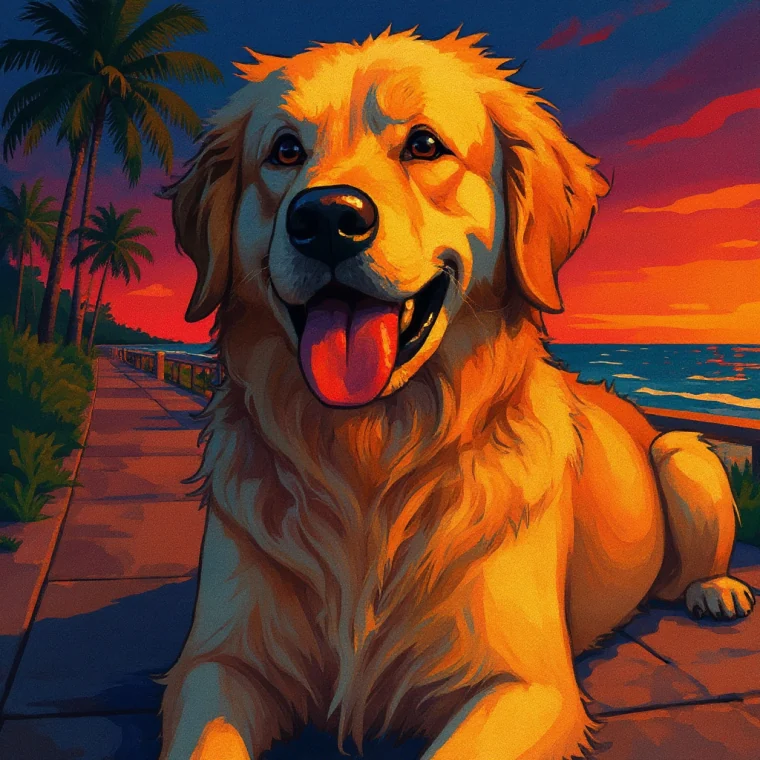
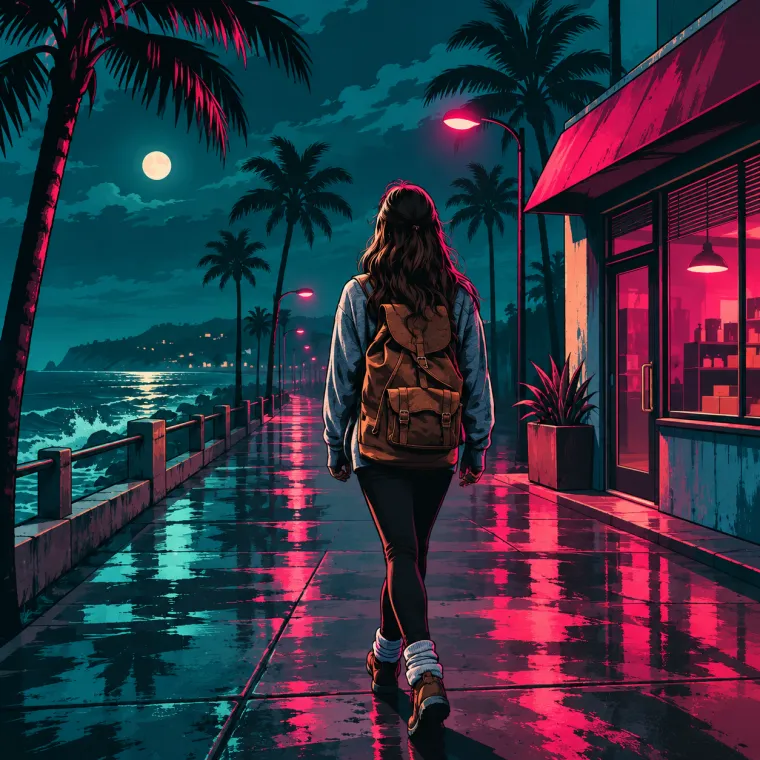
Before and after: two illustrated styles
Both examples use licensed stock photos. We made the Neon night preview with ImageGen, using a different model from the online filter.
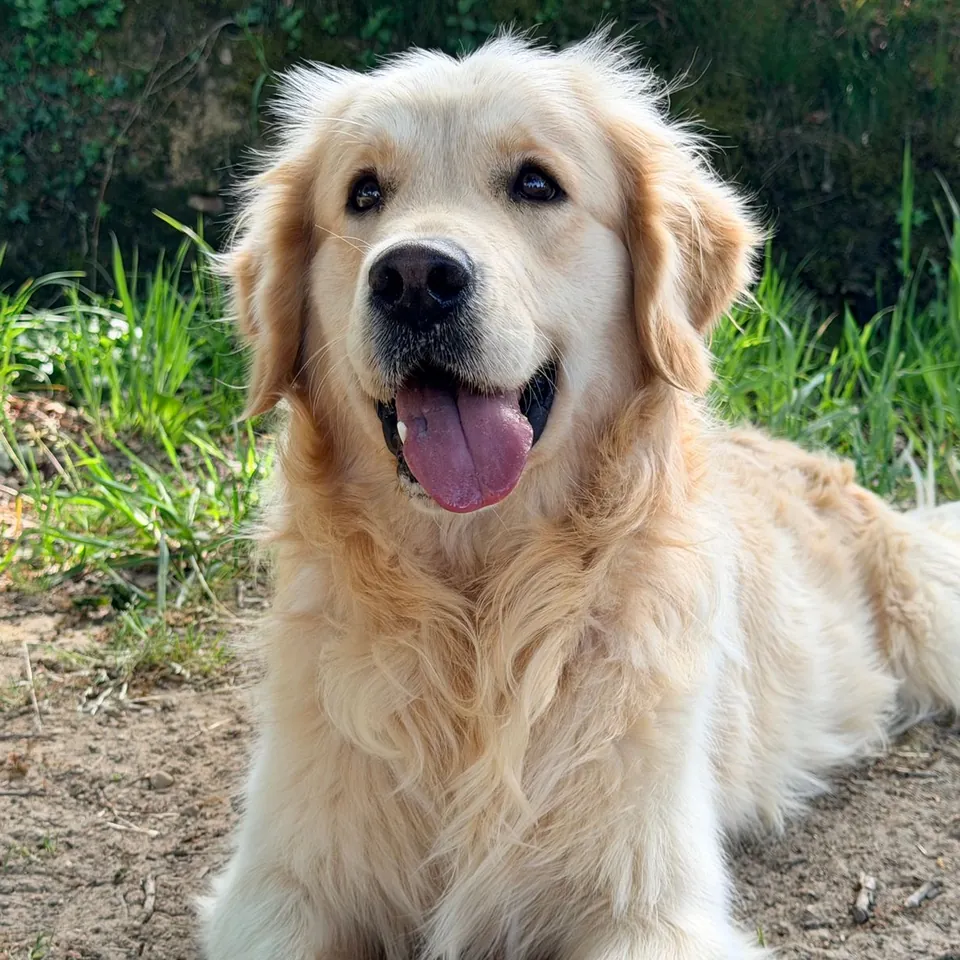
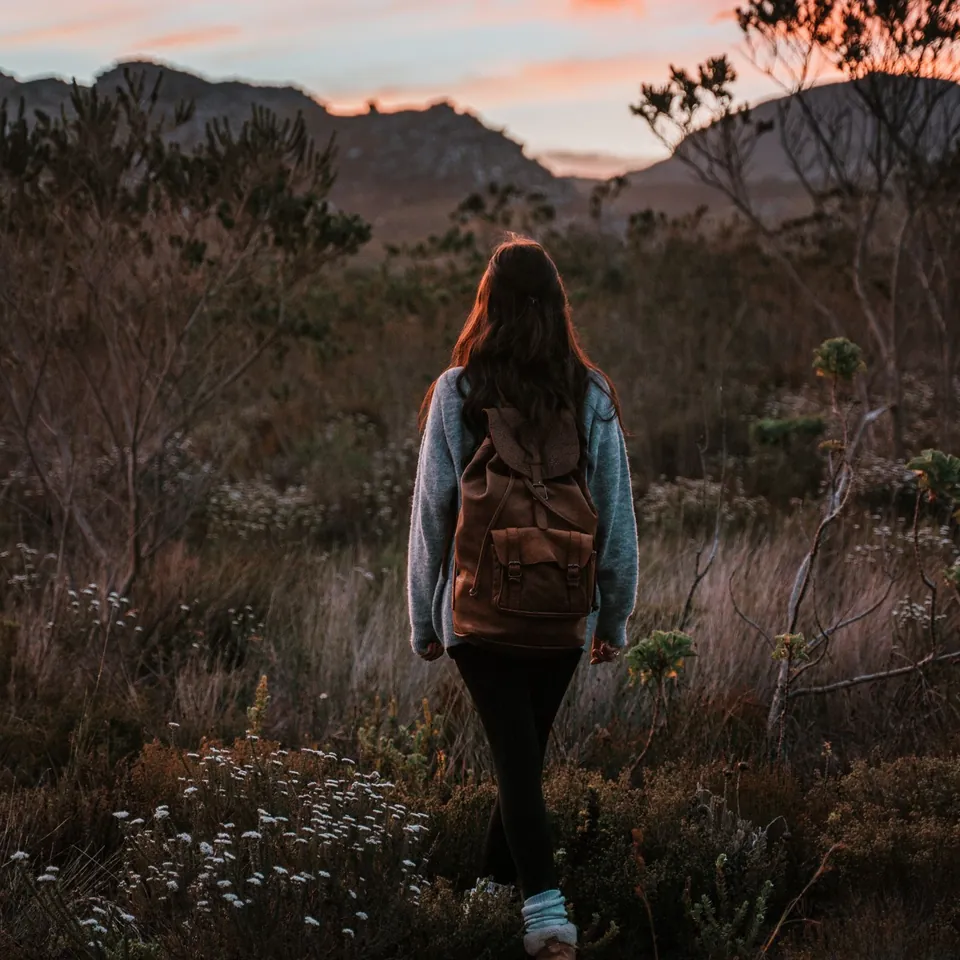
How to turn a photo into loading-screen art
Choose one image in JPG, PNG or WebP format. Keep the file within 4 MB and the dimensions within 7 megapixels. Start with one adult or pet and give their head some breathing room in the frame.
Select Sunset beach for orange light and teal water, or Neon night for darker shadows and bright magenta highlights. Confirm that you have the rights and any consent, sign in and select Generate. The upload starts at submission and one portrait uses 10 credits.
Inspect the eyes, hands and outline when the result appears. Download the JPG if you want to keep it, or delete it here. If you plan to use it as a circular profile picture, check how much of the face stays within the crop.
A GTA 6 loading screen look for your portrait
Think of a painted character introduction in a coastal crime thriller. A clear ink outline separates the subject from the setting. Cheekbones, folds in a jacket and tufts of fur get simplified into distinct patches of light and shade. A line of palms or the glow from a wet road puts the subject in a scene. Small brush marks keep broad areas of color from looking flat.
The filter redraws the photo with AI. A garden can become a beach promenade and a hiking trail can become a city street. The model aims to retain the subject’s main features and pose while building the scene around them. Fine details such as freckles, jewelry, fur markings and even the shape of a smile can shift.
Sunset beach or Neon night?
Sunset beach puts warm orange and pink light on the subject, with palm silhouettes and cool water behind them. It suits an outdoor pet photo or a portrait where you want the expression to read clearly at thumbnail size. The brighter setting makes it easier to see the shape of a dark coat or a dark jacket.
Neon night uses deep teal shadows and narrow bands of magenta light along the subject’s edges. Wet pavement and abstract reflections give the frame depth. Try it with a three-quarter pose or a strong silhouette, where the edge of the hair, jacket or ears can pick up the light. Both presets set the scene for you.
Which photos work best?
Pick an image where you can see the subject’s features at a glance. Window light from one side gives the illustrator a readable shadow line without hiding an eye. For a pet, try taking the photo at eye level and keep the ears and muzzle in view. A chest-up frame works well when the finished image will be small.
Choose the original camera file over a tiny screenshot when you can. Sunglasses, hair across the face, motion blur and several people in the same shot give the model less to work with. If an accessory or a pet’s markings matter to you, check those details before posting. For a recognizably illustrated avatar, keep the subject near the center of the input crop.
For an avatar made of visible color blocks, try the photo to pixel art tool below. You set the block size and palette there. The loading-screen presets give you drawn contours and a new setting, with the exact brushwork and lighting decided by the model.
Photo rights, privacy and expiry
Use a photo you own or have permission to alter. Get consent from any adult pictured. Leave out minors, celebrities and other public figures. Before using the artwork commercially, check that your permission covers that use and that you have the necessary likeness rights.
Submitting sends the photo to PhotoToGIF and its configured external AI processor. The uploaded source expires after 24 hours. PhotoToGIF keeps the result private to your signed-in account for up to 30 days. You can delete it sooner from the result panel. The external processor has its own data terms.
You might also like
Photo filter questions
Is this an official GTA 6 filter?
No. This independent fan-style art filter has no affiliation, endorsement or sponsorship from Rockstar Games or Take-Two Interactive. The trademarks belong to their respective owners.
Can I make my own GTA loading screen art?
Yes. Start with one photo of a consenting adult or pet, then choose a beach sunset or a neon-lit street for the illustration.
How much does the filter cost?
One run uses 10 credits, equal to $0.50 at the $9 price for 180 credits. An account and enough credits are required. Failed or timed-out jobs return the credits.
Will the illustration still look like me?
It aims to keep you recognizable. AI can still redraw the shape of your mouth, the spacing of your eyes or other identifying details. Compare the two images before you share the portrait.
Can I use a photo of my pet?
Yes. Use a photo you have permission to edit with one pet clearly in view. Choose an angle that shows the markings you want the model to keep.
What kind of file will I get?
You can download one still JPG. The tool requests a square image at about one megapixel. Save a local copy before the result expires if you want to keep it.
Not affiliated with, endorsed by, or sponsored by Rockstar Games or Take-Two Interactive. Grand Theft Auto and GTA are trademarks of their respective owners. This is an independent fan-style art filter.