Photo to line drawing: turn a photo into a full-size PNG
This photo to line drawing tool makes a black-and-white outline from a photo; tune edge detail and sensitivity, then save a PNG at the original pixel dimensions. Everything runs in your browser.
PNG export keeps the photo’s original pixel dimensions.
Examples
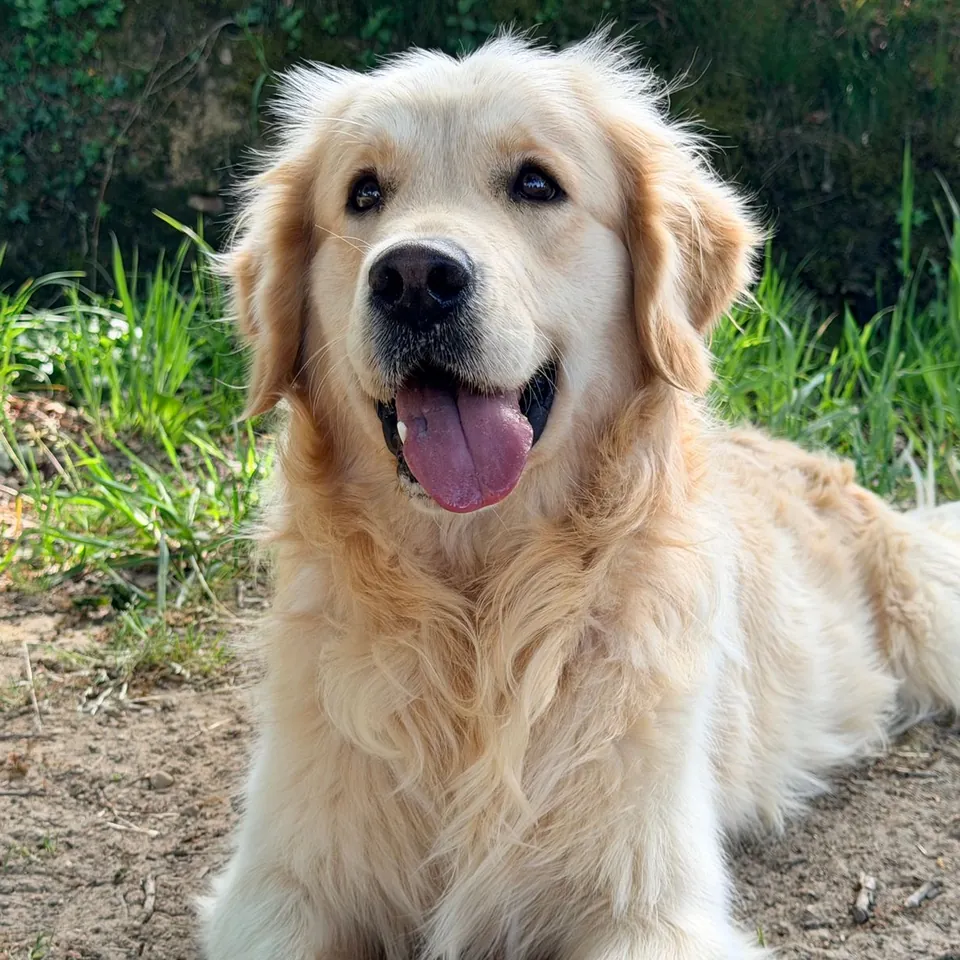
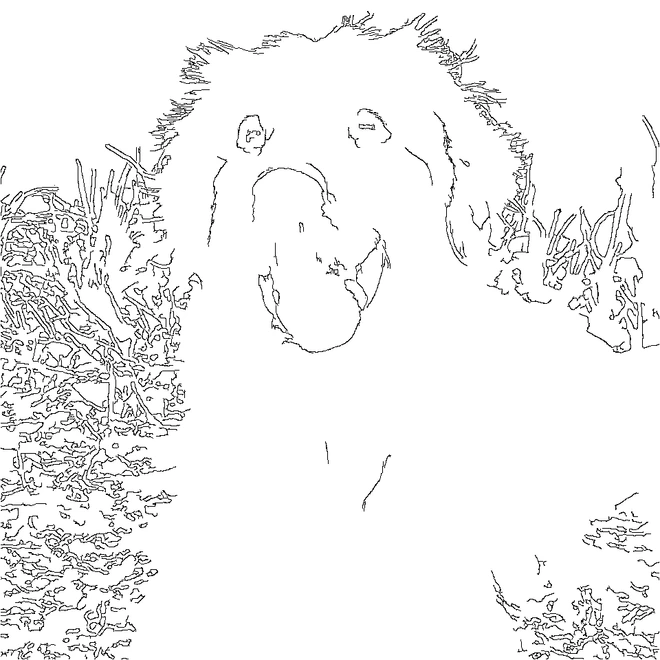
Turn a photo into line art in 4 steps
Add 1 JPG, PNG, WebP or GIF photo, up to 20 MB and 20 megapixels. GIF input uses its first frame.
Set Detail from 0 to 100: lower values smooth more texture; higher values retain fine edges.
Set Edge sensitivity from 20 to 160 and line weight from 1 to 5. Lower sensitivity finds more edges; higher sensitivity keeps stronger contours.
Optionally invert the tones or clear the background, review the live preview, and download the full-size PNG.
What photo to line drawing conversion makes
A line drawing reduces a photo to a set of dark contours on a light background. This tool smooths image noise, detects brightness edges, thins them to single-pixel strokes and links weak edges that touch stronger ones. It keeps the input photo’s pixel width and height in the exported PNG, so the drawing can be used at the same image dimensions.
The algorithm is a local, classic edge filter. It does not trace an object with a pen, invent missing detail, or redraw the image as an illustration. A line can appear around a shadow or a change in texture, and a subtle edge can disappear when sensitivity is raised. Use the preview to choose which details matter for your project.
This page is for line-art image export: stencils, craft references, engraving tests, embroidery planning and black-and-white illustrations. It offers a transparent background and inversion for white outlines on black. For a paper layout with closed coloring regions, use the separate photo to coloring page tool.
Tune detail, threshold and line width
The detail slider changes the amount of pre-blur before edges are measured. Move it down to simplify noisy fur, leaves, gravel or fabric. Move it up to preserve small features such as eyes, lettering, window frames and thin branches. The strongest setting can also keep background texture, so a high number is not automatically a cleaner drawing.
Edge sensitivity controls the threshold for keeping a contour. Lower values show more faint edges and surface texture. Higher values leave the strongest boundaries and remove weaker marks. Line weight grows the resulting strokes by up to four pixels around the detected edge. For thin stencils, use a narrow stroke; for a small display or a dark material, a wider stroke can be easier to see.
A plain, well-lit photo with a clear subject usually gives the most legible output. If a face or object blends into its surroundings, crop it closer or try a different image. This filter does not separate foreground from background, recognize a subject, or keep source colors.
Export a full-resolution PNG
The PNG has the same pixel dimensions as the decoded photo, up to the 20-megapixel input limit. It contains two tones by default: black line pixels and a white background. Invert switches them to white lines on black. Transparent background makes the non-line pixels clear so the outline can sit on a different color in a graphics or craft program.
PNG preserves hard edges and transparency without JPEG compression. The export stays a raster image; it does not create editable vector paths or an SVG. If you need to change an individual contour, open the PNG in an image editor and adjust it there. The tool does not promise exact engraving or embroidery results, which depend on the material and equipment.
You can change Detail, Edge sensitivity, line weight, inversion and transparency without re-uploading the photo. Each setting change reruns the same local worker and updates the canvas preview. Download the version you have checked; no generated files are stored by the site.
How this photo to line drawing tool compares with general editors
A general editor is better for manual retouching or layers; this tool applies a local edge filter and exports a full-size raster PNG. It needs no account, credits or watermark.
Local processing, limits and image rights
The image is decoded and processed on your device. Edge detection runs in a browser Web Worker, so the page remains responsive while it works. PNG encoding and download also happen locally. PhotoToGIF does not upload, store or host your photo. No sign-up is required.
Use JPG, PNG, WebP or GIF files up to 20 MB and 20 megapixels. Animated GIFs contribute their first frame. Larger images are refused to protect browser memory; accepted images keep their original pixel dimensions in the PNG. A very large output can take longer to save and requires matching memory on your device.
Only edit photos you own or have permission to use. You remain responsible for image rights and for checking that a line drawing is fit for your intended use. A contour filter can lose or add visual detail, so review the result before you print, engrave or publish it.
More free GIF and photo tools
Photo to line drawing questions
Is the photo to line drawing tool free?
Yes. It is free, with no sign-up, credits or watermark. Add a photo up to 20 MB and 20 megapixels, tune the outlines and download a PNG.
Does the photo get uploaded?
No. Image decoding, edge detection and PNG export all happen in this browser. The site does not receive or host your photo.
Which image formats can I use?
JPG, PNG, WebP and GIF are supported up to 20 MB and 20 megapixels. An animated GIF uses its first frame.
Does the downloaded PNG keep the original dimensions?
Yes. For accepted images up to 20 megapixels, the PNG has the same pixel width and height as the decoded photo.
Can I make white lines on black or use transparency?
Yes. Invert swaps black and white, and Transparent background clears the non-line pixels. White lines on transparency are visible when placed over a dark layer.
Can I export SVG?
No. This tool exports a full-size raster PNG; it does not vectorize the edges into SVG paths.
Can I use the line drawing commercially?
Only if you own the photo or have permission for that use. The tool does not provide a license for the source image.