Edit text in photo: cover old words, type new ones, save full size
To edit text in photo, box the words you want gone, fill the area from its surroundings, then type the new text in a font, size and color you choose. The download keeps the photo’s original resolution.
JPG, PNG or WebP, up to 20 MB and 50 megapixels. It is edited on this device, never uploaded.
Examples
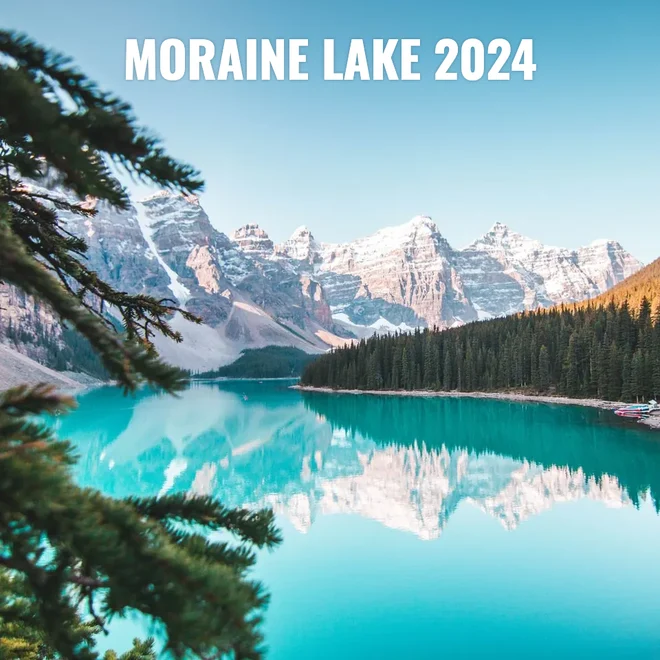
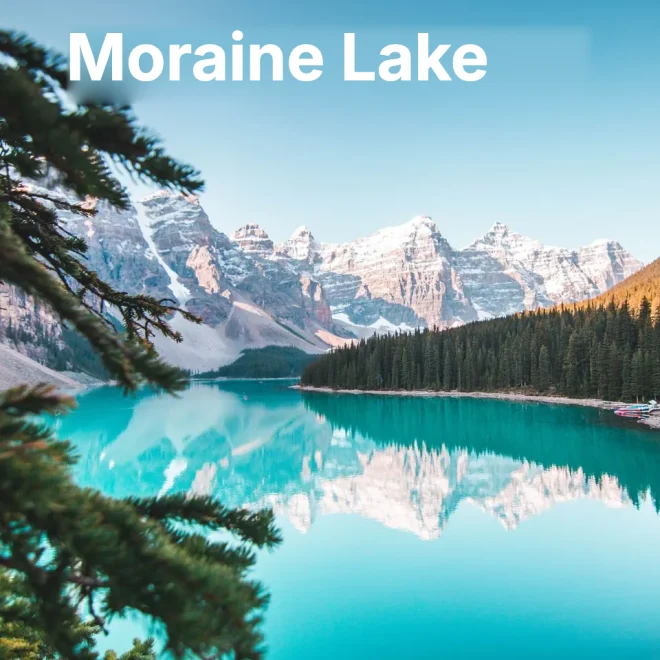
Edit text in a photo in 5 steps
Add a JPG, PNG or WebP image up to 20 MB and 50 megapixels.
With Cover selected, drag a box over the words. Pick a fill: Smooth, Edge color or Copy nearby.
Press Add text, type the new words, and drag them into place on the photo.
Match the look with the font (11 choices), size, weight, color, alignment, letter spacing, outline, shadow and rotation from −45° to 45°. Pick color samples a color from the photo.
Download a PNG for exact pixels or a JPG at 92% quality for a smaller file.
What this editor does, and what it does not
Text in a photo or screenshot is just pixels, so it cannot be retyped the way you edit a document. This editor works in two steps. First you cover the old words: draw a box over them and fill it from the area around it. Then you type new text on top in a font, size and color you pick.
It is a cover-and-retype editor. It does not read the letters, recognize the original typeface, or rebuild a photo’s detail behind the text. On plain backgrounds, like a flat poster, a painted sign, a slide or a chat screenshot, the change is often hard to spot. On busy textures, curved surfaces or text across a face, the covered area will show.
Everything runs in this tab. The image is not uploaded, and both PNG and JPG downloads keep the original width and height in pixels.
Choosing a fill for the old text
Keep each box tight around the letters, and use two or three small boxes rather than one large one. Every box and text layer is listed beside the photo, where you can select it, change it or delete it.
- Smooth fills the box from its border inward, so a gradient, a shadow or a lit wall carries through. It adds a little grain measured from the surroundings so the patch does not look plastic. Best for skies, walls, paper and gently shaded backgrounds.
- Edge color paints one flat color: the median of the pixels just outside the box, or any color you pick. Best for solid labels, buttons, slides and screenshots.
- Copy nearby copies an area of the same size from above, below, left or right of the box, chosen as the cleanest match or set by you, and blends its edges into the border. Best for repeating textures like fabric, brick or wood grain.
Matching the font, size and color
There is no automatic font matching, so pick the closest face and compare. The bundled fonts are Inter, Nunito, Space Grotesk, Oswald, Anton, Source Serif 4, Libre Baskerville, Courier Prime and Caveat, all under open licenses, plus your device’s Arial or Helvetica and Georgia or Times. Phone and web screenshots are often close to Inter or Arial; posters often use a condensed face like Oswald or Anton; menus and printed signs are often a serif.
Size is set in pixels of the original image, from 8 to 600, so it matches what you measure on the photo. Use Pick color on a thick part of an old letter to copy its color before you cover it.
Acceptable use and limits
Do not use this editor to change identity documents, receipts, invoices, bank or payment screenshots, tickets, certificates, official letters, or anything else where a changed word could mislead someone about money, identity or authority. Our acceptable use policy does not allow it, and in many places it is a crime.
Good uses are fixing a typo on your own poster, updating a date or price on your own flyer, translating a meme, or replacing placeholder words in a mockup. Use images you own or have permission to edit.
Limits: there is no automatic text detection, so you mark the words yourself. Images can be up to 50 megapixels, but Safari on iPhone and iPad holds about 16.7 megapixels in one canvas, so very large photos may need a desktop browser. JPG is compressed again on export; PNG keeps every pixel but makes a larger file.
How this browser tool compares with photo editors
A general photo editor is better when you need layers or broader retouching tools. This page is a narrower cover-and-retype workflow for adding text to a photo; the image stays in the browser and the export has no account, credits or watermark requirement.
More free GIF and photo tools
Edit text in photo questions
Is it free to edit text in a photo here?
Yes. The editor is free, with no sign-up, no credits and no watermark. Export as many PNG or JPG files as you need.
Is my image uploaded?
No. The image is opened, edited and exported in this browser tab. PhotoToGIF never receives or stores it.
Which formats and sizes work?
JPG, PNG and WebP up to 20 MB and 50 megapixels; a GIF uses its first frame. iPhone HEIC photos need converting to JPG first in most browsers.
Will the new text match the original font exactly?
Not automatically. You choose the closest of 11 fonts and adjust size, weight, spacing and color by eye. Exact matching would need the original font file.
Does the download keep the original resolution?
Yes. Covers and text are applied to the full-size image, so the PNG or JPG has the same width and height in pixels as the photo you added.
Can it remove text from busy backgrounds?
Partly. Smooth and Copy nearby work well on plain or repeating backgrounds. On faces, detailed scenes or curved surfaces, the covered area will be visible.
Can I keep a transparent background?
Yes, with PNG. Transparent pixels in a PNG or WebP stay transparent unless you cover them. JPG has no transparency, so they become white.
Can I edit text on IDs, receipts or official documents?
No. Changing documents, receipts, tickets or financial screenshots to mislead anyone is not allowed under our acceptable use policy and may be illegal.
Can I use the edited image commercially?
Yes, if you own the image or have permission to edit and use it. The bundled fonts are open-licence and fine in commercial images.