Add snow to photo: make a snowy PNG or falling-snow GIF
Layer soft, drifting snow over one photo. Make a still for a card or a short falling-snow loop to share.
One JPG, PNG or WebP, up to 20 MB and 20 megapixels.
Your result will appear here.
How does Add Snow to Photo work?
It draws softly blurred flakes of different sizes and brightness over one photo. Choose a light flurry or heavy snowfall. The PNG holds the first arrangement of flakes still, and the GIF moves them at different speeds for a repeating two-second snowfall.
Snow photo examples
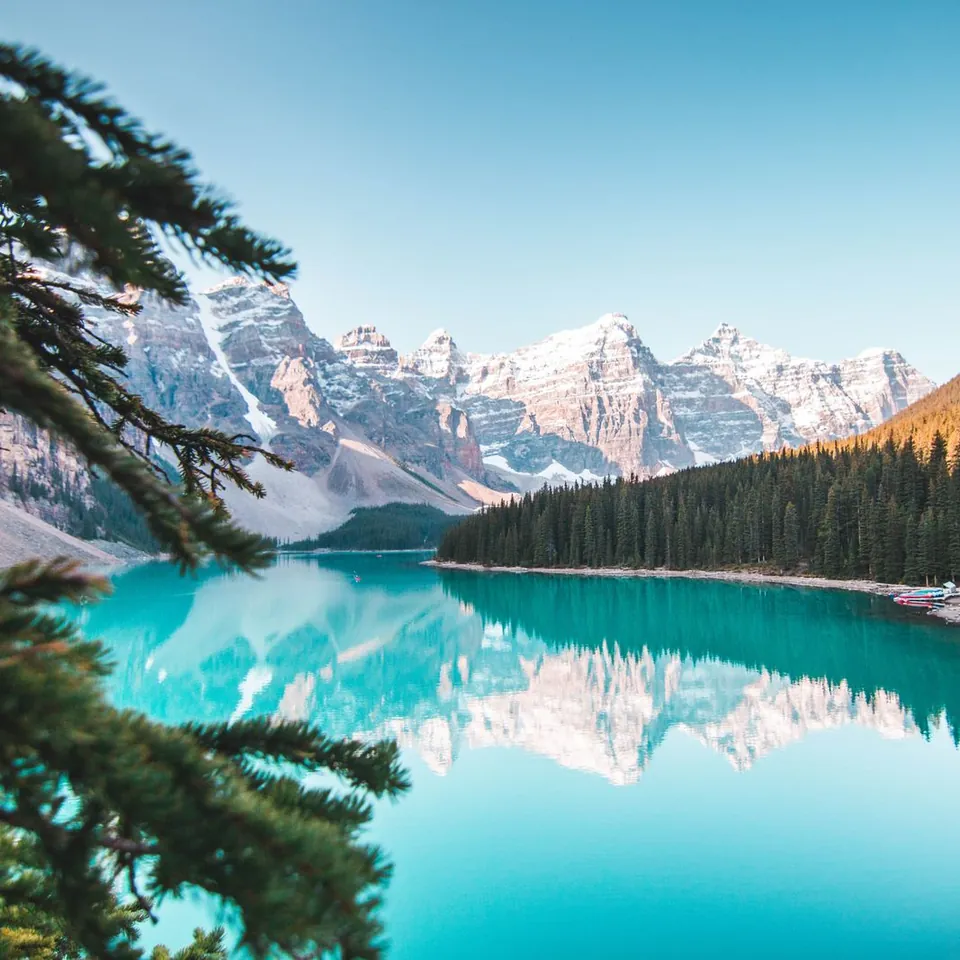
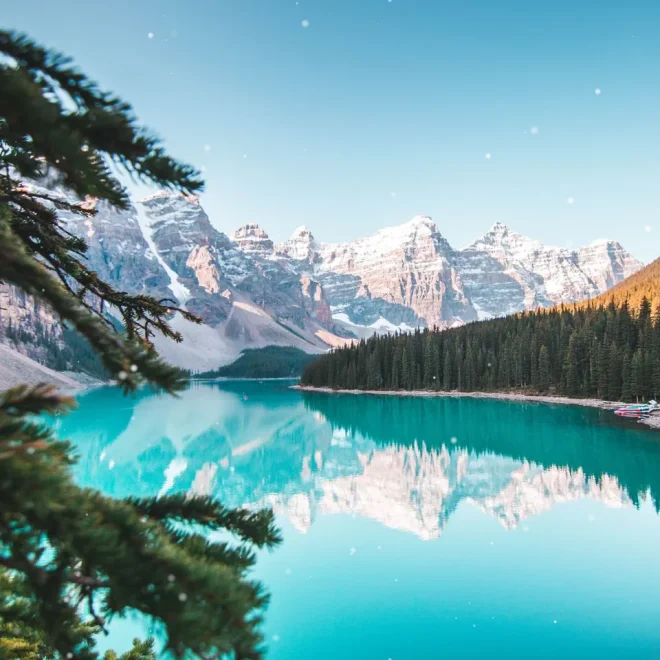


How to add snow to photo in three steps
Choose one JPG, PNG or WebP up to 20 MB and 20 megapixels.
Choose one of two intensities, light flurry or heavy snow, and one of two flake sizes.
Make and download a PNG (up to 1,600 px on the long edge) or a 2-second GIF (20 frames at 10 fps, up to 480 px on the long edge).
More photo tools
Snow effect questions
Is it free to add falling snow to a picture?
Yes. PNG and GIF exports are free, with no account, credits or watermark.
Does my photo leave my device?
No. A worker in your browser draws the snow and builds the export. Download the file to keep it after you close the page.
Can I get a still image instead of a GIF?
Yes. Choose Make snowy PNG for a still image. Its longest edge is up to 1,600 px.
How long does the snowfall GIF run?
One loop lasts two seconds and repeats automatically. Each loop has 20 frames at 10 fps, and the longest edge is up to 480 px.
Which settings make the snow easier to see?
Heavy snow and large flakes are the most visible, especially against dark trees or buildings. A light flurry with small flakes leaves more of the photo clear.
Can I keep a transparent background?
Yes in the PNG. The GIF fills transparent parts of the photo with white before adding snow.