Photo to coloring page: turn a photo into a printable sheet
This photo to coloring page tool lets you choose a pet, person, home or landscape photo, tune the outline detail, preview a white coloring sheet, then save a 300 dpi PNG or Letter/A4 PDF.
Print at 100% · US Letter · no account
Examples
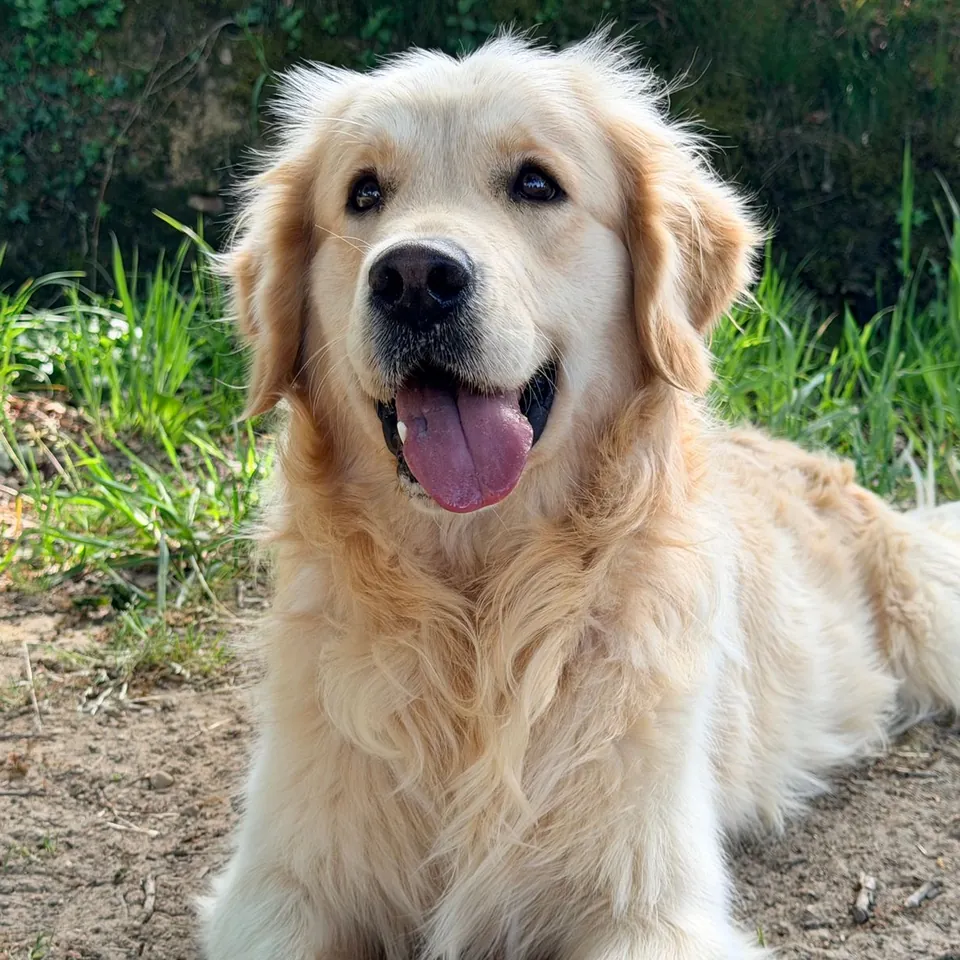
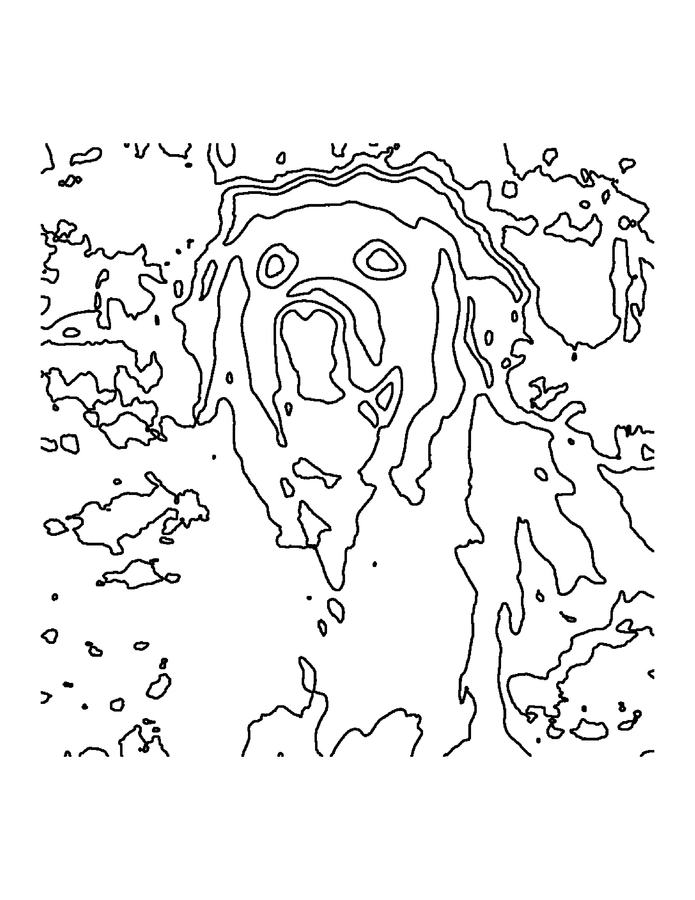
Make a photo coloring page in 4 steps
Add 1 JPG, PNG, WebP or GIF photo, up to 20 MB and 20 megapixels. An animated GIF uses its first frame.
Move Detail toward Simple for broad shapes or Fine for more of the photo’s edges. Adjust line weight and remove tiny specks.
Optionally add a short title, choose US Letter or A4, portrait or landscape, and set a margin from 0.25 to 1 inch.
Check the page preview, download a 300 dpi PNG or a one-page PDF, and print at 100% scale.
What photo to coloring page conversion does
This tool turns the visible edges in one photograph into black outlines on a white page. It softens small textures, finds stronger changes in brightness, links nearby edges, and closes tiny breaks so larger shapes are easier to color. A photo of a pet, a child, a house or a favorite place can become a simple activity sheet without uploading the picture.
This is a classic image-processing filter, not a hand-drawn tracing or a generative redraw. It follows the edges already present in the photo, so busy grass, hair, fabric and shadows can make extra marks. The detail control lets you keep more of those marks or smooth them away. Line weight and speck cleanup help make the result easier to print and color.
Closed regions are easiest to color when the source has clear, high-contrast boundaries. Some edges in a photograph are faint or disappear into a similar background, so the outline can contain small gaps. Preview the whole page before printing; this tool does not promise that every shape is closed or that the result is suitable for a young child without an adult checking it.
Set detail, line weight and cleanup
Detail controls how much smoothing happens before edge detection. A lower value blends away small texture and works better for broad coloring areas. A higher value keeps fur, facial features, leaves and building details. If the page looks crowded, lower detail first; if the main outlines disappear, raise it again. The preview redraws in a browser worker when you change a setting.
Line weight adds pixels around each detected edge. Thin lines leave more white space; heavier lines are easier to follow on a home printer. Remove small specks filters tiny connected marks, which can clear isolated noise while leaving longer contours alone. Strong cleanup can also remove a small eye, whisker or other detail, so compare the preview before downloading.
A clear subject, even light and a plain background usually give better outlines than a busy, dark photo. Cropping out clutter helps too.
Choose Letter or A4 and print at 100%
The page layout supports US Letter at 8.5 by 11 inches and A4 at 8.27 by 11.69 inches, in portrait or landscape orientation. Set a 0.25 to 1 inch margin to leave room for a printer that cannot print to the paper edge. A short optional title is placed above the picture. The drawing is fitted inside the remaining printable area without stretching it.
The PNG is 2,550 by 3,300 pixels for Letter or 2,481 by 3,507 pixels for A4, tagged at 300 dots per inch. The PDF uses the selected paper dimensions and contains one embedded page image. In the print dialog, choose the matching paper size and 100% or Actual Size; a “fit to page” option can shrink the drawing and change the margins.
Use the PDF when you want a ready-to-print page. Use the PNG when you want to keep a high-resolution image, place it in another document, or print from an app that handles image files. Both are created in the browser and download directly to your device.
How this photo to coloring page tool compares with photo editors
A full photo editor gives you layers and manual drawing tools. This tool focuses on turning one photo into a print-ready outline with Letter or A4 layout and a 300 dpi PNG or PDF. Processing is local, with no account, credits or watermark.
Privacy, formats and photo rights
The selected photo is decoded in this tab. The outline calculation runs in a local Web Worker, and the printable PNG or PDF is made on your device. PhotoToGIF does not receive, store, host or upload the photo or the finished page. No account is needed. Closing the tab clears the working copy; save the file if you want to keep it.
The limit is 20 MB and 20 megapixels per image. JPG, PNG, WebP and GIF are accepted; animated GIF input uses its first frame. A larger image is refused so the browser does not need to allocate several very large working buffers. The printable output is a raster page, not a vector drawing, and line detail cannot exceed what the source photo contains.
Use a photo you took or have permission to edit and print. You are responsible for the rights to the image and for how you share the page. The filter may simplify or omit details, and it does not identify people, objects or copyrighted artwork.
More free GIF and photo tools
Photo to coloring page questions
Is the photo to coloring page tool free?
Yes. It is free, with no sign-up, credits or watermark. Add one photo up to 20 MB and 20 megapixels, adjust the outlines, then download a 300 dpi PNG or PDF.
Is my photo uploaded to a server?
No. The photo is decoded and processed in this browser, and the printable files are created on your device. PhotoToGIF does not receive or host the image.
Which photo formats and sizes are supported?
JPG, PNG, WebP and GIF are supported up to 20 MB and 20 megapixels. An animated GIF uses its first frame.
Can I download a Letter or A4 PDF?
Yes. Choose Letter or A4, portrait or landscape, and a 0.25 to 1 inch margin. The PDF has one page at the selected paper size; print it at 100% or Actual Size.
Is the PNG really 300 dpi?
Yes. The Letter PNG is 2,550 by 3,300 pixels and the A4 PNG is 2,481 by 3,507 pixels, both tagged at 300 dpi for printing at their named paper size.
Will the shapes always be fully closed?
No. The filter closes small edge breaks, but low contrast, shadows and overlapping details can still leave gaps. Use a clear photo and inspect the page before printing.
Can I use the coloring page commercially?
Only if you own the photo or have permission for that use. The tool does not grant rights to the source image.